Imagine you’re streaming an intense competitive match. Everything looks incredibly smooth on your gaming monitor, but when you check the livestream, explosions appear blurry, fast camera movements create pixelated messes, and important gameplay details disappear.
Frustrating, right?
This problem affects plenty of streamers, especially those broadcasting fast-paced games like Call of Duty, Apex Legends, Valorant, and Fortnite.
The issue isn’t always your internet connection or graphics card. Quite often, it comes down to how your streaming software compresses and transmits moving images.
That’s why optimizing encoding settings for high-motion gameplay broadcasts is essential for anyone serious about delivering professional-looking livestreams.
Unlike relatively static content, competitive gaming produces constant visual changes that challenge video compression systems. Rapid movement, complex environments, particle effects, and sudden camera transitions all require careful encoding decisions.
Understanding bitrate, resolution, frame rate, encoder presets, and compression methods can make a dramatic difference.
In this guide, we’ll break down the technical details without making things unnecessarily complicated, helping you create smoother, sharper gaming streams that remain stable even during chaotic gameplay.
1. Understanding Why High-Motion Gameplay Is Difficult to Encode
Before changing OBS settings, it’s worth understanding why fast-moving games create so many compression problems.
Video encoders reduce the amount of information needed to represent each frame. Rather than storing every image independently, modern compression systems identify similarities between frames and encode changes more efficiently.
This works particularly well when most of the scene remains unchanged.
However, fast-paced gameplay creates a completely different challenge.
How Motion Complexity Affects Video Quality
Imagine broadcasting a strategy game where the camera remains relatively stationary.
Most visual elements change slowly, allowing the encoder to reuse information from previous frames.
Now compare that with a battle royale match featuring rapid rotations, explosions, moving characters, and detailed outdoor environments.
A much larger portion of the image changes continuously.
The encoder must represent those differences while staying within the available bitrate.
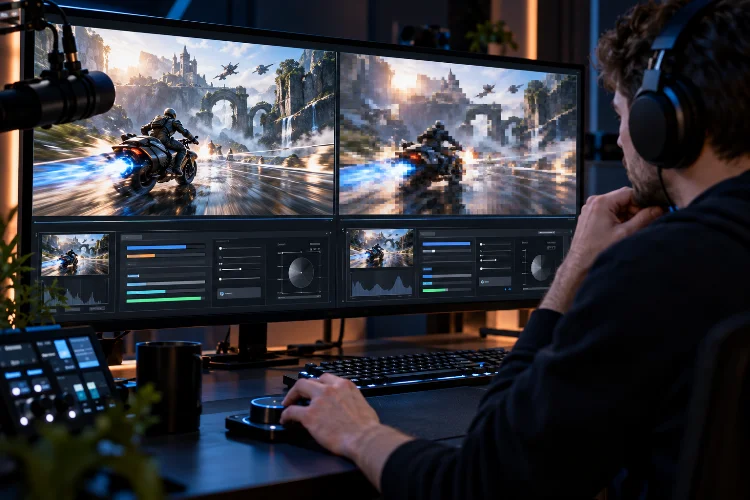
When insufficient data is available, viewers may notice blocky textures, reduced detail, smearing, or unstable image quality.
These problems are commonly called compression artifacts.
Fine environmental details such as grass, smoke, falling particles, and textured surfaces can be particularly difficult to preserve.
Why More Resolution Doesn’t Always Mean Better Quality
It’s easy to assume that broadcasting at 1080p automatically produces a better image than streaming at 720p.
Unfortunately, compression doesn’t work that way.
A 1920 × 1080 image contains more than two million pixels, while a 1280 × 720 image contains approximately 922,000 pixels.
When both streams use the same bitrate, the higher-resolution video has more pixel information to compress.
During fast gameplay, this can make 1080p footage look unexpectedly soft or blocky.
Reducing output resolution allows the encoder to allocate its available data across fewer pixels.
The result can sometimes appear cleaner, even though the theoretical resolution is lower.
The goal isn’t maximizing resolution. It’s finding the best balance between image detail, motion clarity, and reliable delivery.
2. Choosing the Right Resolution and Frame Rate for Fast Games
Resolution and frame rate are two of the most important settings in any gameplay broadcasting setup.
Together, they determine how much visual information your encoder must process every second.
Selecting the right combination can improve stream quality without requiring additional hardware.
Why 60 FPS Is Usually Better for Competitive Gameplay
Frame rate measures how many individual images are displayed each second.
At 30 FPS, viewers receive 30 frames per second. At 60 FPS, they receive twice as many.
The difference becomes particularly noticable during rapid camera movement, aiming adjustments, and fast character animations.
Higher frame rates generally provide smoother motion and make it easier to follow quick gameplay transitions.
However, doubling the frame rate also increases the number of frames the encoder must handle.
That additional workload creates a tradeoff.
At a fixed bitrate, 60 FPS footage may contain fewer encoded bits per frame than comparable 30 FPS footage.
For competitive shooters and racing games, maintaining 60 FPS is often worth that compromise.
For slower games, 30 FPS may provide acceptable movement while allowing more compression resources to preserve visual detail.
Finding the Sweet Spot Between 720p, 900p, and 1080p
Many gaming streamers use 1080p60 as their initial target because it’s familiar and widely supported.
However, 900p60 or similar intermediate resolutions can be useful alternatives when bitrate is limited.
Consider a streamer broadcasting a fast battle royale game at approximately 6,000 Kbps.
At 1080p60, detailed vegetation and rapid movement might create visible compression artifacts.
Reducing the output resolution to 1600 × 900 lowers the pixel count by about 31%, giving the encoder fewer pixels to process.
This can improve perceived motion clarity in some scenes.
The improvement isn’t guaranteed because encoder behavior, scaling quality, and source complexity also matter.
The best approach is testing multiple resolutions with identical gameplay sequences.
Avoid Unnecessary Scaling
In OBS Studio, the Base (Canvas) Resolution determines the working canvas, while the Output (Scaled) Resolution controls the transmitted video dimensions.
For example, you can maintain a 1920 × 1080 canvas while streaming at 1600 × 900.
This preserves your scene layout while reducing output demands.
Lanczos scaling can provide sharp results, while less demanding filters may be useful when GPU performance is limited.
Avoid repeatedly scaling the same footage through unnecessary processing stages.
Every additional operation can introduce visual changes or increase system workload.
3. Optimizing Bitrate and Rate Control for Motion-Heavy Streams
Bitrate determines how much video data your encoder sends each second.
It’s one of the biggest influences on streaming quality, especially during visually complex gameplay.
But simply selecting the highest available bitrate isn’t always the right solution.
Understanding Bitrate Requirements
Bitrate is commonly measured in kilobits per second, or Kbps.
A 6,000 Kbps video stream transmits roughly 6 megabits of video data per second, excluding audio and networking overhead.
Higher bitrates generally provide more information for representing image detail.
However, the benefits depend on resolution, frame rate, compression efficiency, and scene complexity.
For conventional Twitch H.264 streaming, approximately 6,000 Kbps remains a widely documented reference point.
YouTube Live supports different bitrate recommendations, including considerably higher values for some resolutions and codecs.
For example, YouTube’s encoder guidance lists 17 Mbps as the recommended H.264 bitrate for 1080p60 and 12 Mbps for AV1 or HEVC at the same resolution.
These values are platform-specific recommendations, not universal streaming requirements.
Always check your chosen service’s current limitations before configuring OBS.
Why Constant Bitrate Matters
Streaming software offers several rate-control methods, including Constant Bitrate (CBR), Variable Bitrate (VBR), and quality-based modes such as CQP.
For conventional live broadcasting, CBR is generally the safest starting point.
CBR aims to maintain a consistent target bitrate over time, making bandwidth requirements more predictable.
This doesn’t mean every encoded frame receives exactly the same amount of data.
The encoder still adjusts how bits are distributed while attempting to maintain its target rate.
VBR allows data rates to change according to content complexity, which can be useful for recording and certain supported workflows.
CQP prioritizes a selected quantization level rather than a predictable network bitrate.
That’s why CQP is generally better suited to local recording than ordinary live streaming.
Leave Enough Upload Bandwidth
Your internet connection must reliably support the complete outgoing stream.
Suppose you’re broadcasting at 6 Mbps video bitrate with additional audio and protocol overhead.
An upload connection that barely reaches 6 Mbps during a speed test isn’t sufficient.
As a practical starting point, OBS recommends setting video bitrate at approximately 75% of your available upload speed when troubleshooting connection problems.
A stable upload capacity of at least 8 Mbps may support a 6 Mbps stream, although additional headroom is preferable.
Remember that upload speeds can fluctuate.
Wired Ethernet connections are generally more predictable than unstable wireless connections, especially during long broadcasts.
4. Selecting the Best Video Encoder for Gaming Performance
Your choice of encoder affects video quality, hardware utilization, and streaming stability.
Different encoding methods can produce different results even when resolution and bitrate remain identical.
Understanding the available options helps prevent unnecessary performance problems.
Software Encoding With x264
The x264 encoder uses CPU resources to compress video using H.264.
It offers several presets that control the balance between compression efficiency and processing workload.
Slower presets generally spend more computational effort finding efficient ways to represent the image.
However, demanding presets may interfere with gameplay when the CPU is already heavily loaded.
For single-PC streaming setups, x264 can become particularly challenging during CPU-intensive games.
A faster preset such as veryfast may provide a more stable experience than attempting aggressive compression settings.
The best choice depends on available processing headroom.
Hardware Encoding With NVENC, Quick Sync, and AMD
Hardware encoders use specialized capabilities available on compatible graphics processors.
NVIDIA NVENC, Intel Quick Sync, and AMD hardware encoding can reduce the CPU demands associated with livestream compression.
For many single-PC gaming setups, hardware encoding is a practical choice.
NVIDIA’s NVENC broadcasting guide explains how dedicated GPU encoding hardware supports gameplay recording and streaming.
However, hardware encoding isn’t completely free of performance costs.
OBS still needs GPU resources for scene composition, scaling, capture, and other operations.
A game consuming nearly all available GPU resources may leave insufficient headroom for stable streaming.
This is why limiting your in-game frame rate can sometimes improve broadcast smoothness.
Comparing H.264, HEVC, and AV1
H.264 remains a common choice because of its broad compatibility with streaming workflows.
HEVC, also known as H.265, can offer improved compression efficiency compared with H.264.
AV1 is another modern codec designed to deliver strong compression efficiency.
At comparable visual quality, newer codecs can often reduce bitrate requirements.
However, codec support depends on your GPU, encoding software, streaming platform, and selected broadcast mode.
YouTube Live accepts H.264, HEVC, and AV1 for supported standard-dynamic-range workflows.
Twitch codec availability can vary by streaming configuration and broadcasting features.
Don’t assume that an encoder appearing in OBS automatically means your destination supports it.
Compatibility should always come before theoretical compression improvements.
5. Fine-Tuning Advanced OBS Encoder Settings
Once resolution, frame rate, bitrate, and codec are configured, advanced encoder options can help improve image quality.
These settings influence how efficiently the encoder distributes information across individual frames.
However, more aggressive settings aren’t automatically better.
Keyframe Interval and Compression Structure
Video encoders commonly use different frame types to reduce redundant information.
I-frames provide independently decodable reference images, while P-frames and B-frames use information associated with other frames.
This makes compression more efficient.
The keyframe interval determines how frequently keyframes are introduced.
For most conventional gaming livestreams, a two-second keyframe interval is a reliable starting point.
At 60 FPS, that typically corresponds to one keyframe interval every 120 frames, although the exact encoded structure depends on the codec and encoder.
YouTube recommends two-second keyframes and specifies that intervals should not exceed four seconds.
Using unnecessarily frequent keyframes can consume bandwidth that might otherwise preserve motion detail.
Encoder Presets and Multipass Encoding
Modern NVENC implementations offer quality presets such as P5 and P6.
Higher-quality presets can improve compression efficiency, but they may increase processing demands.
NVIDIA recommends P6 with high-quality tuning for capable systems in its OBS broadcasting guide.
For a GPU already operating close to its limits, P5 may be a more practical starting point.
Multipass encoding can further analyze image complexity before distributing compression resources.
Two-pass quarter-resolution analysis offers a useful compromise between quality improvements and processing overhead.
For high-motion gameplay, stable performance matters more than squeezing out tiny visual improvements.
Adaptive Quantization, Look-Ahead, and B-Frames
Adaptive quantization helps the encoder allocate compression resources according to perceptual importance.
In older NVIDIA-related OBS terminology, related functionality was commonly described as Psycho Visual Tuning.
Enabling adaptive quantization can improve perceived detail distribution in visually demanding scenes.
Look-ahead allows supported NVENC configurations to make more informed decisions about frame structure.
However, it can introduce additional GPU workload.
If your graphics card is already under heavy pressure, disabling look-ahead may improve stability.
Two B-frames provide a practical baseline for many H.264 streaming setups.
More advanced configurations can use additional B-frames when supported, but compatibility and performance should be tested.
Avoid enabling every advanced feature simultaneously and assuming the result will improve.
Change settings individually so you can identify what actually helps.
6. Recommended OBS Settings for Twitch and YouTube Gaming
A good streaming configuration should reflect your platform, hardware, internet connection, and game type.
There’s no single preset that produces perfect results for every broadcaster.
Still, a few practical starting points can simplify the setup process.
Starting Configurations for Fast-Moving Gameplay
The following examples distinguish conventional Twitch H.264 configurations from YouTube’s published recommendations.
| Platform and Format | Resolution / FPS | Video Bitrate |
|---|---|---|
| Twitch, H.264 | 720p60 | 4,500 Kbps |
| Twitch, H.264 | 900p60 | 5,500–6,000 Kbps |
| Twitch, H.264 | 1080p60 | 6,000 Kbps |
| YouTube, H.264 | 1080p60 | 17,000 Kbps |
| YouTube, AV1 / HEVC | 1080p60 | 12,000 Kbps |
The Twitch values are illustrative conventional-stream starting points rather than guarantees or universal account limits. The YouTube values reflect its published recommended ingest bitrates for the listed codecs.
Twitch’s newer broadcasting options may use different settings or multiple encoded video outputs.
Verify service requirements before applying these figures.
Configure Video and Output Settings Correctly
In OBS Studio, open Settings → Video and configure your canvas resolution, output resolution, and frame rate.
For competitive games, start with 60 FPS if your hardware can maintain it.
Next, navigate to Settings → Output.
Advanced Output Mode provides additional encoder options.
For a typical NVENC H.264 stream, consider CBR rate control, a two-second keyframe interval, High profile, and a quality-focused preset your GPU can reliably handle.
Adaptive quantization may be enabled when supported.
Keep look-ahead disabled initially if GPU headroom is uncertain, then test whether enabling it improves quality without introducing encoding lag.
For local recordings, use seperate recording settings when possible.
Recording with CQP can preserve higher-quality footage for editing without forcing your livestream to use the same compression settings.
Don’t Forget Audio and Color Settings
Video quality matters, but audio problems can ruin an otherwise excellent broadcast.
AAC stereo audio is widely supported, with 128–160 Kbps being a practical range for many standard gaming streams.
For SDR video, Rec. 709 is a common color-space choice.
Use compatible color formats and range settings throughout your capture, encoding, and editing workflow.
Incorrect color configuration can make footage appear washed out, excessively dark, or strangely saturated.
Avoid switching to HDR purely because your monitor or graphics card supports it.
HDR streaming requires compatible encoding, platform support, and a properly configured color pipeline.
For most beginners, a stable SDR workflow is easier to manage.
7. Troubleshooting Encoding Lag, Pixelation, and Dropped Frames
Even carefully configured streams can experience problems during demanding gameplay.
The trick is identifying the actual cause before changing random settings.
OBS provides useful diagnostic information that can help separate encoding problems from network instability.
Distinguish Rendering, Encoding, and Network Problems
Open OBS and select View → Stats to inspect performance indicators.
Rendering lag generally means OBS cannot compose frames quickly enough, often because GPU resources are overloaded.
Encoding lag means the video encoder cannot process frames within the required time.
Network-related dropped frames indicate that the connection to the streaming server cannot reliably transmit the stream.
These problems may look similar to viewers, but they require different solutions.
For example, increasing bitrate won’t fix an overloaded encoder.
Similarly, switching to a faster encoding preset won’t necessarily repair an unstable internet connection.
OBS explains these distinctions in its official Encoding Performance Troubleshooting and Stream Connection Troubleshooting guides.
Reduce GPU Pressure During Competitive Games
If your game runs at extremely high frame rates without a limit, it may consume almost all available GPU capacity.
That leaves fewer resources for OBS scene rendering and related processing.
Try limiting the game’s frame rate to a sustainable value.
For example, someone using a 144 Hz monitor might test a game cap below 144 FPS if unrestricted rendering causes OBS lag.
The correct cap depends on actual GPU usage, frame-time stability, and personal gameplay preferences.
You can also reduce demanding in-game settings such as shadows, reflections, and visual effects.
Simplifying animated overlays or browser sources can further reduce streaming workload.
These changes may produce better results than purchasing new hardware immediately.
Test With Representative High-Motion Scenes
A static desktop preview won’t reveal how your encoder handles chaotic gameplay.
Testing should include fast camera movements, explosions, detailed environments, and extended action sequences.
Record or privately test several minutes of representative gameplay whenever the platform allows it.
Compare footage at normal playback speed and inspect difficult sections more carefully.
Pay attention to texture smearing, block artifacts, motion smoothness, and audio synchronization.
You should also monitor OBS statistics throughout the test.
A stream that looks sharp during its opening minute but starts skipping frames during intense combat isn’t properly optimized.
Develop a Repeatable Optimization Process
Begin with a stable baseline configuration and record its performance.
Next, change one variable, such as output resolution, bitrate, or encoder preset.
Repeat the same type of gameplay test and compare the results.
Keep improvements that provide meaningful benefits without creating instability.
Occassionally, a technically more advanced setting may produce worse real-world results because your system lacks sufficient resources.
That’s why practical testing matters more than copying a popular streamer’s configuration.
Once you’ve found a reliable setup, save your OBS profile and document the settings.
This makes future adjustments easier when changing games, graphics cards, or streaming platforms.
Optimizing encoding settings for high-motion gameplay broadcasts is about balancing compression efficiency, hardware performance, and network stability.
Fast-paced games demand careful decisions about resolution, frame rate, bitrate, and encoder configuration. While 60 FPS generally improves motion clarity, selecting an appropriate output resolution and maintaining sufficient bandwidth are just as important.
Hardware encoders, sensible quality presets, two-second keyframes, and compatible rate-control settings provide a useful foundation for most streamers.
However, the best configuration ultimately depends on your system and broadcasting platform.
Ready to improve your stream quality? Open OBS Studio, review your current encoder settings, and test several minutes of demanding gameplay while monitoring performance statistics.
Start with stability, improve clarity gradually, and build a streaming setup that stays sharp when the action gets intense.