Imagine playing a high-stakes Valorant match where every millisecond matters. You’re holding a difficult angle, tracking enemy movement, and preparing for an important engagement.
Suddenly, your frame rate drops because your streaming software is competing with the game for system resources. For competitive players, even small performance interruptions can become frustrating distractions.
That’s one reason professional gamers and serious content creators explore building reliable dual-PC streaming setups for competitive play.
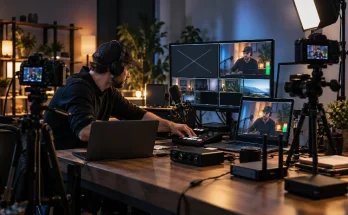
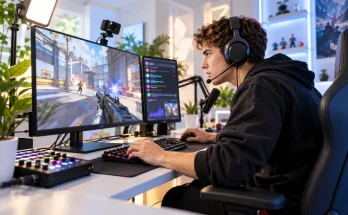
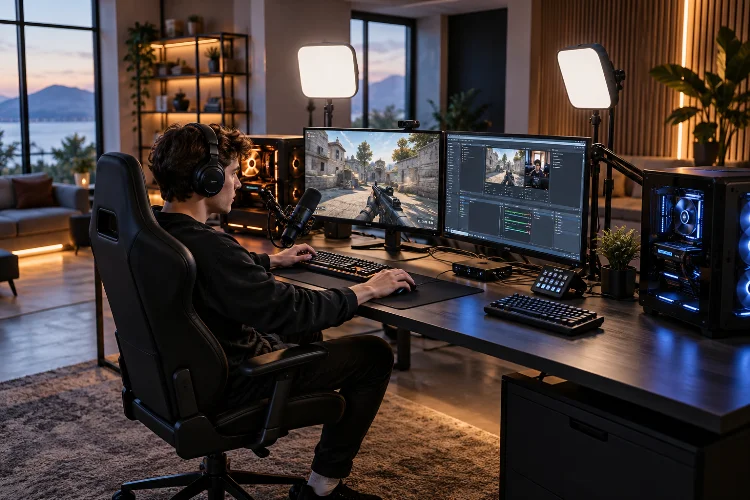
Instead of forcing one machine to handle everything, a dual-computer configuration separates gaming performance from broadcast production. One PC concentrates on running the game, while another manages video encoding, overlays, audio mixing, recording, and livestream distribution.
Sounds simple, right?
In practice, building a dependable setup requires more than connecting two computers with an HDMI cable. Capture card compatibility, display refresh rates, audio routing, network stability, and synchronization all influence the experience.
A poorly configured system can introduce problems that wouldn’t exist with a traditional single-PC setup.
This guide explains how to design, configure, optimize, and maintain a two-PC streaming environment that supports competitive gaming without unnecessarily complicating your broadcast workflow.
1. Understanding Dual-PC Streaming Architecture and Its Advantages
Before purchasing additional equipment, it’s important to understand what a dual-PC streaming system actually accomplishes.
The primary objective is separating gameplay workloads from content production workloads.
Gaming PC vs. Streaming PC: Different Responsibilities
In a traditional single-PC configuration, the processor and graphics card handle both gameplay and broadcasting tasks.
Even when using a dedicated hardware video encoder, streaming software still requires processing resources for scene composition, overlays, audio handling, and related operations.
A dual-PC architecture distributes those responsibilities.
The gaming computer focuses on rendering the game, processing player inputs, and maintaining responsive performance. Meanwhile, the broadcast machine handles capture, encoding, scene transitions, livestream delivery, and potentially local recording.
A typical configuration looks like this:
Gaming PC → Video and Audio Capture → Streaming PC → Streaming Platform
The gaming monitor remains connected through a compatible display path, allowing the player to see the game directly rather than relying on the delayed OBS preview.
For competitive titles such as Counter-Strike 2, Valorant, Apex Legends, and Fortnite, this distinction matters.
Players can optimize the gaming computer for responsiveness while allowing the second machine to manage production tasks independently.
Does a Second PC Automatically Improve Performance?
Not necessarily.
Modern GPUs include capable hardware encoders that can make single-PC streaming surprisingly efficient.
According to OBS Studio’s encoding performance documentation, streaming difficulties often result from excessive GPU utilization, complicated scenes, or resource contention.
Moving broadcasting tasks to another computer can reduce that competition.
However, a dual-PC configuration doesn’t guarantee higher frame rates or lower input latency.
Performance depends on the original bottleneck, hardware capabilities, display configuration, and game settings.
A creator running a lightweight esports title on powerful hardware may experience little practical benefit from a second machine.
The real advantage appears when production demands become substantial enough to interfere with consistent gameplay performance.
2. Choosing Hardware for a Dependable Two-PC Streaming System
A professional setup doesn’t require buying two equally expensive computers.
In many situations, allocating resources intelligently matters more than purchasing premium components for every device.
Prioritize Gaming Performance on the Primary Computer
The gaming PC should receive the strongest components relevant to competitive performance.
A fast processor, capable graphics card, sufficient system memory, and responsive storage help maintain stable gameplay.
However, component priorities depend on the game.
CPU-sensitive esports titles may benefit significantly from strong processor performance, while graphically demanding games place greater pressure on the GPU.
High-refresh-rate monitors also play an important role.
Competitive players frequently use displays operating at 144Hz, 240Hz, or higher, depending on their equipment and preferences.
The streaming setup should preserve the intended gameplay display mode rather than forcing the player into an unnecessary 60Hz limitation.
Build the Streaming PC Around Encoding Requirements
The broadcast computer doesn’t necessarily need a flagship gaming GPU.
Its main job is capturing video, composing OBS scenes, processing audio, encoding output, and delivering a stable livestream.
A modern processor and supported hardware encoder can provide a practical foundation for these tasks.
Sufficient memory is useful when managing complicated browser overlays, animated graphics, and multiple production applications.
Fast storage becomes particularly important if the machine also records high-quality footage locally.
For example, a streamer delivering a 1080p60 broadcast with relatively simple overlays may have very different hardware requirements from someone recording high-bitrate 4K gameplay while hosting several camera feeds.
Purchase equipment based on your actual production workflow instead of assuming that higher specifications always deliver meaningful improvements.
Select the Right Capture Card
The capture card connects the video output from the gaming computer to the broadcasting system.
Internal PCIe models install directly into the streaming PC, while external models commonly connect through USB.
Both approaches can work well when the equipment supports the required video formats and connection bandwidth.
Pay particular attention to the distinction between capture capability and passthrough capability.
A card might support a high-refresh-rate signal passing through to a monitor while capturing at a lower resolution or frame rate.
For instance, some modern capture devices can handle high-refresh-rate gameplay signals while producing a standard 1080p60 broadcast feed.
However, exact combinations vary by model, firmware, HDR settings, and signal format.
Review the manufacturer’s supported-resolution tables before purchasing.
3. Configuring Video Capture Without Sacrificing Competitive Responsiveness
Video routing is one of the most important technical decisions in a dual-PC setup.
A working video feed isn’t enough if it introduces display limitations or changes how the game feels.
Understand Passthrough and Display Cloning
There are two common approaches to routing gameplay video into a capture card.
With HDMI passthrough, the gaming PC sends video to the capture card, which passes a compatible signal onward to the gaming monitor.
This approach can simplify cabling.
However, the entire signal path must support the desired resolution, refresh rate, color format, and any variable refresh rate features.
The alternative is display cloning.
In this configuration, the gaming PC connects directly to the primary monitor, often through DisplayPort, while a separate GPU output sends a duplicated image to the capture card.
The capture card then delivers the video to the streaming computer.
This configuration can be attractive to competitive gamers who want to maintain a direct monitor connection.
However, cloning can introduce compatibility challenges when the monitor and capture device support different display modes.
Check Refresh Rates and EDID Compatibility
EDID, or Extended Display Identification Data, communicates display capabilities between connected devices.
Capture cards can use EDID handling to report supported resolutions and refresh rates to the gaming computer.
Elgato’s official EDID documentation explains different operating modes, including merged and internal configurations.
These settings can help address situations where a capture card and monitor negotiate incompatible display formats.
For example, a player using a 1440p240Hz monitor may want to transmit a lower-frame-rate signal to the broadcasting machine.
Whether that combination works depends on the GPU, capture device, display mode, and relevant software settings.
Incorrect cloning configurations can sometimes limit refresh rates or produce a black capture screen.
Modern capture devices may also encounter limitations involving Display Stream Compression, HDR, or particular high-bandwidth video formats.
Always test the exact configuration before a tournament or scheduled broadcast.
Avoid Playing Through Capture Preview Windows
Capture software introduces some processing and display delay.
That delay might be barely noticeable during casual viewing, but it isn’t desirable for precision aiming or fast competitive reactions.
Players should use their intended gaming monitor through a suitable direct or low-latency passthrough path.
The OBS preview on the streaming PC is for production monitoring, not competitive gameplay.
Verify display response, refresh rate, and smoothness before treating the video configuration as complete.
4. Building Clean Audio Routing Between Two Computers
Audio is often the trickiest part of building a professional dual-PC configuration.
Video can look perfect while the livestream suffers from missing game audio, duplicated microphones, delayed commentary, or inconsistent voice-chat levels.
The solution is treating audio as a separate signal-routing system.
Identify Every Audio Source
A competitive gaming production usually includes several audio categories.
These may include game sound, microphone commentary, Discord conversations, music, alerts, and occasional media playback.
Not every audio source needs to travel between computers.
For instance, the gaming PC may handle game audio and team communication, while the streaming PC manages a dedicated broadcast microphone and alert sounds.
A useful design principle is assigning one clear responsibility to each audio path.
Avoid capturing identical audio through several overlapping sources, as this can create echoes or duplicated sound.
Route Game Audio Through HDMI or Dedicated Mixing Tools
One practical approach sends game audio alongside the HDMI video signal.
The capture card receives both and makes them available to the broadcasting computer.
However, sending audio to HDMI can complicate headset monitoring if the gaming PC outputs sound to only one playback device.
Depending on the hardware and operating system, virtual audio routing software or a compatible hardware mixer can create seperate monitoring and broadcast paths.
Elgato’s Wave Link documentation describes options for sending a stream mix to a hardware output, including a capture device.
Other compatible audio-routing systems may provide similar functionality.
The important consideration is ensuring the player hears game audio through the intended headset while the streaming PC receives the correct broadcast mix.
Keep Competitive Voice Communication Reliable
Competitive gaming depends heavily on timely communication.
Routing team-chat audio incorrectly can disrupt important callouts or create unwanted delays.
For many players, keeping team communication directly on the gaming computer is the simplest approach.
The streaming machine can receive a copy of the relevant sound without becoming part of the player’s essential listening path.
If voice chat needs independent broadcast mixing, route it separately through supported software or hardware.
This allows the streamer to adjust what viewers hear without changing the player’s headset balance.
It also provides flexibility when editing recorded footage later.
Synchronize Audio and Video
Different capture paths can introduce different delays.
For example, microphone commentary recorded directly on the streaming PC may arrive earlier than video passing through a capture card.
OBS Studio provides synchronization offset controls through Advanced Audio Properties.
Use a visible test event, such as a clap or another clearly identifiable sound, and record a short sample.
Compare the audio timing with the corresponding visual event.
Adjust the appropriate source offset gradually, then record another sample to verify the result.
Avoid choosing arbitrary delay values without testing.
A well-synchronized stream feels natural, while even noticeable timing mismatches can make professional content appear unfinished.
5. Optimizing OBS Studio for Stable Competitive Broadcasting
Once the hardware and signal routing are functioning, attention shifts toward broadcast quality.
The streaming PC needs a configuration that delivers consistent output without wasting processing resources.
Set Practical Resolution and Frame Rate Targets
For many competitive gaming broadcasts, 1080p60 provides a useful balance between smooth motion, visual clarity, and bandwidth requirements.
Faster games benefit from fluid presentation, but resolution and frame rate should match the streaming platform, available encoder, and internet connection.
A 1440p output may be appropriate when hardware and platform support make it practical.
However, sending higher-resolution video doesn’t automatically improve the viewer experience.
Compression, bitrate limits, and the audience’s internet connections influence the final result.
Start with a proven configuration and increase quality only after confirming stability.
Choose Appropriate Encoding Settings
OBS Studio supports several hardware and software encoding options, depending on the computer’s capabilities.
Hardware encoders can help reduce the CPU workload associated with livestream encoding.
Available formats and settings vary by GPU, OBS version, and streaming destination.
Rather than applying an outdated universal preset, begin with current OBS recommendations and the chosen platform’s supported settings.
A two-second keyframe interval is commonly required or recommended by livestreaming services, but always verify the destination’s current specifications.
Test the selected codec, bitrate, and preset under realistic production conditions.
If encoding lag appears, investigate whether the settings exceed the streaming computer’s available capacity.
Monitor Rendering, Encoding, and Network Problems Separately
OBS performance indicators help distinguish different technical issues.
Rendering lag typically indicates that the system cannot compose frames quickly enough.
Encoding lag occurs when the encoder struggles to process completed frames.
Network-related dropped frames suggest problems delivering the outgoing stream to the platform.
These problems require different fixes.
For example, simplifying complicated browser overlays might help rendering performance but won’t repair an unstable internet connection.
OBS’s official performance troubleshooting documentation recommends investigating GPU load, source complexity, filters, and output settings when rendering or encoding becomes unreliable.
Use the Stats window and recorded OBS logs to identify the actual bottleneck.
6. Designing Reliable Network Connections and Recording Workflows
Using two computers doesn’t eliminate the importance of network stability.
In fact, poor network organization can undermine an otherwise excellent production environment.
Prefer Wired Ethernet Connections
Whenever practical, connect both machines to a reliable network through wired Ethernet.
The gaming computer requires a stable connection to game servers, while the broadcast machine needs sufficient upstream bandwidth for livestream delivery.
These are different traffic patterns, but both can be affected by congestion.
For example, a large upload from the streaming PC may compete with other network activity if the internet connection or router becomes saturated.
A wired connection reduces the uncertainty associated with wireless interference, although it doesn’t guarantee freedom from ISP problems.
Use a capable router or switch and maintain sufficient upload bandwidth headroom.
OBS’s stream connection troubleshooting guide identifies unstable network connections as a major cause of dropped frames during broadcasting.
A strong local network cannot compensate for an unreliable external connection.
Use Local Recording as an Additional Safety Layer
Professional creators often need high-quality recordings for highlights, reviews, sponsored content, and long-form videos.
Recording locally on the streaming PC can preserve footage independently of the livestream platform.
OBS supports different recording configurations and multiple audio tracks through Advanced Output settings.
For example, a recording might contain a combined program mix alongside separate tracks for commentary, game audio, and team communication.
This makes editing substantially easier.
OBS also recommends MKV for resilient recording because it is less vulnerable to losing an entire file if recording stops unexpectedly.
The recording can be remuxed into another supported format later when needed.
However, simultaneous streaming and recording increases resource and storage demands.
Test both operations together before relying on the configuration for important content.
Prevent Storage and Bandwidth Surprises
High-quality video recording can consume considerable storage space.
A long gaming session may generate large files, particularly when recording at high resolutions or quality settings.
Keep adequate free space available and periodically archive completed footage.
Avoid running large cloud backups or uploads during important matches if they could saturate the connection.
A well-planned workflow handles recording, transfer, and archival operations without interfering with competitive play.
7. Testing, Troubleshooting, and Building Fail-Safe Streaming Workflows
Reliability isn’t determined by whether a setup works once.
A dependable system should continue performing under realistic gaming and production conditions.
That requires repeatable testing and clear recovery procedures.
Stress-Test Both Computers Together
Before an important broadcast, run the game at normal competitive settings while the streaming PC performs its full workload.
Activate overlays, alerts, browser sources, audio mixing, and local recording.
Monitor frame pacing on the gaming machine and OBS statistics on the broadcast computer.
A short idle test isn’t enough.
Play several matches or perform a representative workload to identify issues that only appear under sustained load.
Watch for overheating, USB capture interruptions, audio drift, and unexpected frame-rate instability.
If problems occur, change one meaningful variable at a time.
This makes it easier to determine whether the issue involves hardware, software configuration, or signal routing.
Troubleshoot Capture Failures Methodically
A black capture screen can result from several different problems.
The source may be using an unsupported display mode, the wrong input may be selected, or the capture device may not be receiving a compatible video signal.
First, confirm that the gaming monitor works correctly.
Next, inspect the capture card’s input, cable connections, and detected resolution.
Then verify that OBS has selected the intended capture device.
If high-refresh-rate capture fails, temporarily test a standard supported signal such as 1080p60.
This helps determine whether the problem relates to display-mode compatiblity.
For intermittent external capture failures, inspect the USB connection and verify that the device is using an appropriate port rather than an unsuitable hub.
Prepare Backup Scenes and Recovery Options
Even carefully engineered setups can experience failures.
A capture card might disconnect, OBS could freeze, or the internet connection might become unstable.
A professional production should include a recovery plan.
Create a simple technical standby scene that remains available if the gameplay feed disappears.
Keep essential contact information and platform access credentials securely available for authorized use.
Consider maintaining a tested, simplified broadcasting configuration that can be restored when more complicated production elements fail.
A complete single-PC fallback may also be useful, provided the gaming system can support it without unacceptable performance loss.
However, recovery procedures should be tested before they’re needed.
A backup workflow that has never been rehearsed doesn’t offer much confidence during a live event.
Maintain Configuration Backups and Documentation
Document the connections between devices, including video outputs, capture inputs, audio routing, and relevant software settings.
Label cables where appropriate.
Export important OBS scene collections and profiles before making major changes.
Preserve installer information and configuration files for essential hardware drivers or plugins.
A simple diagram showing which device sends each signal can make future troubleshooting much faster.
This becomes especially valuable when upgrading hardware or allowing another person to operate the streaming system.
The long-term objective is operational reliablity, not merely getting an impressive setup working on installation day.
8. Improving Your Dual-PC Setup Without Unnecessary Complexity
Once everything functions correctly, it’s tempting to keep adding new devices and software.
More complicated equipment, however, doesn’t automatically produce a better broadcast.
Every additional component introduces another connection, configuration requirement, or potential point of failure.
Prioritize Stability Over Maximum Specifications
Consider two hypothetical systems.
The first uses premium hardware, numerous animated overlays, elaborate audio routing, and several capture applications.
The second uses a carefully configured capture card, simple OBS scenes, reliable audio paths, and consistent recording settings.
If the simpler system provides stable gameplay and uninterrupted broadcasts, it may be more effective despite having fewer features.
Competitive players should judge improvements by measurable outcomes.
These include stable game frame times, reliable capture, synchronized sound, consistent stream delivery, and easy recovery from technical problems.
Review Your Setup After Major Changes
Driver updates, operating system changes, OBS upgrades, and new capture card firmware can affect previously stable configurations.
Test important functionality after installing updates.
Avoid making unnecessary changes immediately before tournaments or major sponsored broadcasts.
Keep a record of settings that work well, including resolution, refresh rate, encoder configuration, and audio synchronization values.
A consistant testing routine reduces the chance that a minor upgrade creates an unexpected broadcasting failure.
Ultimately, the most professional setup is one that lets you focus on the game rather than constantly managing technology.
Building a dependable dual-PC streaming environment is about creating a clear separation between competitive gameplay and broadcast production.
The gaming computer should maintain responsive performance, while the streaming machine handles capture, encoding, overlays, audio processing, and recording.
Choosing compatible hardware, protecting high-refresh-rate display modes, and designing straightforward audio routing are essential parts of that process.
Equally important, reliable networking, OBS performance monitoring, configuration backups, and realistic stress testing help prevent avoidable interruptions.
Remember that a second computer isn’t automatically necessary for every streamer. Its value depends on your actual performance requirements and production demands.
Start by evaluating your current streaming bottlenecks, then build a system that solves those problems without introducing unnecessary complexity.
The goal isn’t simply to own two powerful PCs. It’s to create a broadcasting setup that performs reliably when every competitive moment counts.